Recuperación de datos
Computer crashes, power outages, or simply forgetting to save can result in the loss or corruption of your work. You can use Blender’s Auto Save feature to reduce the chance of losing files when such events occur.
There are three options to help prevent accidental data loss:
Save Prompt prompts you to save unsaved changes on exit
Save Versions saves additional copies of your blend file with a number appended to the extension
Auto Save saves your file automatically every few minutes (by default, every 2 minutes)
Nota
For your actions, there are options like Undo, Redo and an Undo History, used to roll back from mistakes under normal operation, or return back to a specific action. See Deshacer y rehacer.
Recuperación de versiones guardadas
By default Blender keeps an additional backup when saving files.
So saving renames the previously saved file with a .blend1 extension instead of overwriting it.
This file can be used to revert to a previous state.
See Save Versions to configure the number of versions kept.
Recuperación de la última sesión
Referencia
- Menú:
Recuperar última sesión abrirá el archivo quit.blend guardado en la Carpeta temporal, cuando se sale de Blender de forma normal (ver Sesión de Blender). Tener en cuenta que los archivos en la carpeta temporal podrán ser eliminados al reiniciar la computadora (dependiendo de la configuración del sistema).
Recuperación de archivos auto guardados
Blender automatically saves temporary backups of your work at regular intervals. If Blender crashes or you close it without saving, you may be able to recover your work using the autosave.
Follow these steps to recover an autosave:
Abrir Blender.
Go to the top-left menu bar and select: File –> Recover –> Auto Save.
In the file browser that appears, find the desired auto save. The files are named like:
<filename>_autosave.blendNote, these files are timestamped to help identify the correct one.Select the autosave file and click Open.
Once opened, immediately save the file manually using Save As to avoid overwriting the autosave.
Truco
Enable the detailed list view when browsing auto-saved files to show which is the most recent.
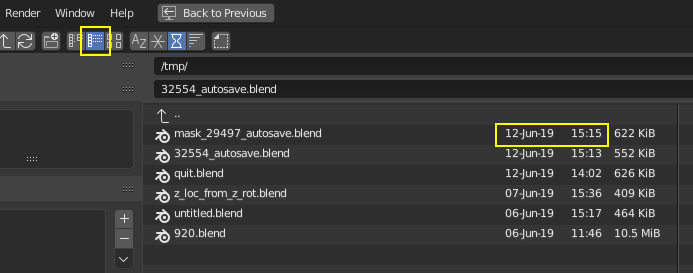
File Browser displaying a vertical list.
Ver también