Nodo Capturar atributo
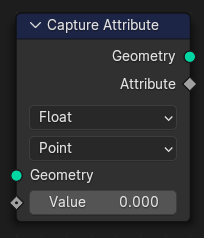
The Capture Attribute node stores one or more fields on a geometry, and outputs those same fields so they can be read by other nodes.
This storing and retrieving of a field can also be done with the Nodo Almacenar atributo con nombre and the Nodo Atributo con nombre respectively. The difference is that the Capture Attribute node creates an anonymous attribute, meaning there’s no need to specify a name and there’s no clutter at the end. This makes the node ideal for temporary data storage.
A common use case is saving information that would normally be lost while converting geometry – see the example below.
Nota
The new attribute is only available in the geometry produced by this node. It can’t be read in the geometry of «sibling» or «upstream» nodes.
Entradas
- Geometría
Entrada estándar de geometría.
- Selección
Boolean field indicating which elements are captured.
The captured fields are only evaluated for selected elements. Unselected elements are assigned the default value for the corresponding data type
- Elementos a capturar
The fields to store. Inputs can be added by connecting another node’s output to this node’s blank input, or by using the Capture Items list in the node’s Properties panel.
The inputs can be renamed by clicking them with Ctrl-LMB in the node itself or in its Capture Items list. The latter also accepts double clicking.
Propiedades
- Dominio
En qué dominio de atributo almacenar los datos evaluados.
Elementos a capturar
Referencia
- Menú:
Vista de lista for adding, removing, reordering, and renaming the inputs of the node.
- Tipo de datos
The data type of the selected input.
Salidas
- Geometría
Salida estándar de geometría.
- Selección
Passes through the evaluated Selection field.
This can be used by downstream nodes without evaluating the selection field again.
- Atributo
The node has an attribute output for each of its field inputs.
Ejemplo
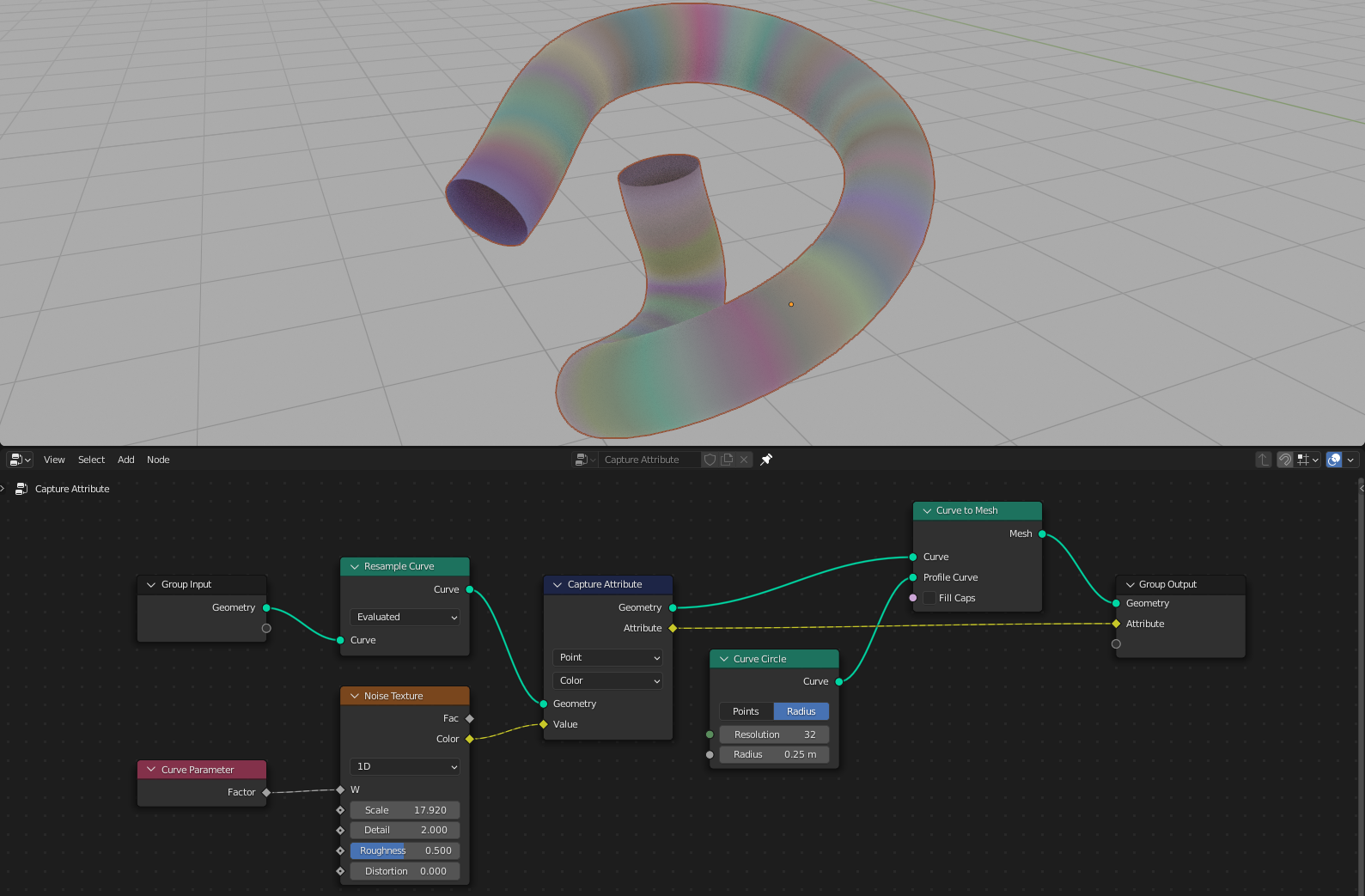
The goal of this example is to turn a Curve into a tube-shaped mesh with pieces cut away at regular intervals. At first, this seems straightforward: use the Nodo Curva a malla to create the tube, read from the Nodo Parámetro de spline to find out where each tube vertex lies on the original curve, and do some math to decide whether to delete the vertex.
This alone doesn’t work, however: the Spline Parameter node calculates its outputs on the fly, and it can only do so for curves. Once the curve has been converted to a mesh, this node can no longer be used.
This is where the Capture Attribute node comes in: it can store the calculated distance on each curve control point. The Curve to Mesh node then transfers these numbers to the mesh vertices (as it does for any attribute). From there, the attribute can be retrieved again by connecting to the same Capture Attribute node that stored it.