Модификаторы F-кривых (F-curve modifiers)
Ссылка
- Панель:
Модификаторы F-кривых схожи с модификаторами объектов тем, что они добавляют неразрушающие эффекты, которые можно настроить в любой момент и накладывать друг на друга для создания более сложных эффектов.
Модификаторы вычисляются сверху вниз. Вы можете изменить их порядок, перетаскивая «точки» в их правом верхнем углу.
Некоторые модификаторы должны располагаться в списке первыми и не могут использоваться одновременно. На данный момент к ним относятся модификаторы „Cycles“ и „Smooth (Gaussian)“.
Интерфейс (interface)
- Имя (name)
По умолчанию модификаторам присваиваются имена по их функции, но это имя можно изменять.
- Выключить (mute)
Установите флажок „/“ в заголовке модификатора, чтобы отключить его.
- Удалить (delete)
Нажмите на крестик „“ в заголовке модификатора, чтобы удалить его.
- Влияние (influence)
Позволяет плавно смешивать исходную и изменённую кривые.
- Ограничить диапазон кадров (restrict frame range)
- Начало/Конец (start/end)
Кадр, на котором начинается/заканчивается действие модификатора.
- Плавный вход/выход (blend in/out)
Количество кадров, за которое модификатор плавно появляется или исчезает, относительно указанных выше значений начала и конца.
Добавление модификатора
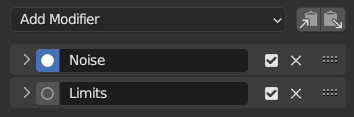
Панель модификатора.
Модификаторы F-кривых можно добавлять несколькими способами: через меню „Channel“ в редакторе графов, посредством контекстного меню области каналов (щелчок правой кнопкой мышки по этой области), а также их можно добавлять и настраивать на вкладке „Modifiers“ на боковой панели.
Чтобы добавить модификатор, сначала выделите F-кривую (в области каналов или выделив один из её ключевых кадров), а затем выберите пункт „Add F-Curve Modifier“ в одном из меню или нажмите на выпадающий список „Add Modifier“ на боковой панели. Это позволит вам выбрать, какой тип модификатора применить к выделенным F-кривым.
Удаление модификаторов F-кривой
Как и при добавлении модификатора F-кривой, существует несколько способов их удаления. Одиночные модификаторы можно удалить, щелкнув значок „“ рядом с модификатором на боковой панели. Несколько модификаторов можно удалить сразу с помощью оператора „Delete F-Curve Modifiers“.
Его можно найти в меню „Channel“ или в контекстном меню региона каналов (нажмите правой кнопкой мышки в области каналов). После выбора этой опции в меню, вы можете открыть панель настройки последней операции, чтобы при необходимости скорректировать настройки.

Панель настройки последней операции
- Режим (mode)
Способ удаления модификаторов F-кривых с выделенных кривых.
- Удалить все (remove all):
Удалить все модификаторы F-кривых с выделенных кривых (параметр по умолчанию).
- Удалить по типу (remove type):
Удалить модификаторы только выбранного типа с выделенных кривых, не затрагивая остальные.
- Удалить первый (remove first):
Удалить самый верхний модификатор в стеке каждой из выделенных кривых.
- Тип (type)
Позволяет указать тип модификатора для удаления (данная опция отображается, только если для „режима“ выбрана опция „Remove Type“.
Типы модификаторов
F-Модификатор «Генератор» (generator modifier)
Создаёт полиномиальную функцию. По сути, это базовые математические формулы, которые задают прямые, параболы и другие, более сложные кривые, в зависимости от используемых значений.
См. также
Также смотрите статью «Gimbal» на англоязычной Википедии и статью «Карданов подвес «на русскоязычной Википедии.
- Режим (mode)
Способ отображения уравнения.
- Расширенный многочлен (expanded polynomial):
Уравнение вида: \(y = A + Bx^1 + Cx^2 + ... + Dx^n\).
- Факторизированный многочлен (factorized polynomial):
Уравнение вида: \(y = (Ax + B)(Cx + D)\).
- Добавление (additive)
Добавить полином к кривой, а не заменять его.
- Порядок (order)
Наивысшая степень „
x“ для этого полинома.- Константа (сonstant)
Константы „A“, „B“, „C“… в уравнении.
Модификатор «Встроенная функция» (built-in function modifier)
Это дополнительные формулы, каждая из которых имеет одинаковые настройки для управления их формой. Более подробную информацию о каждой функции см. в математическом справочнике:
- Тип (type)
Встроенная функция для использования:
Нормализованный синус: \(sin(x)/x\)
- Добавление (additive)
Добавить функцию к кривой, а не заменять её.
- Амплитуда (amplitude)
Регулировать масштабирование по оси „Y“.
- Множитель фазы (phase multiplier)
Регулировать масштабирование по оси „X“.
- Смещение фазы (phase offset)
Регулировать сдвиг по оси „X“.
- Смещение значения (value offset)
Регулировать сдвиг по оси „Y“.
Модификатор «Оболочка» (envelope modifier)
Позволяет изменять форму кривой. Сначала вы задаёте «оболочку», которая состоит из двух горизонтальных линий, примерно соответствующих верхнему и нижнему пределам кривой. Затем вы добавляете контрольные точки, каждая из которых может сжимать, растягивать и изгибать огибающую (а вместе с ней и саму кривую) на определённом кадре.
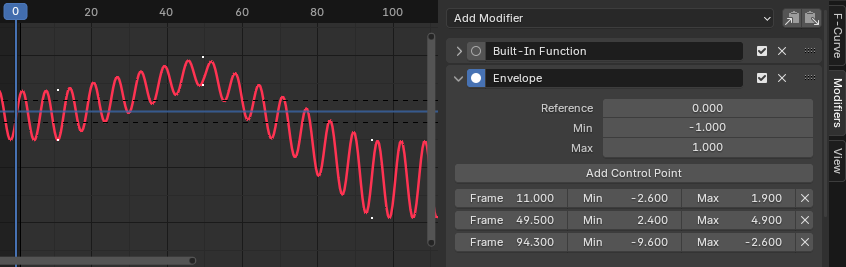
Модификатор «Оболочка».
- Ссылка
Значение, относительно которого центрируется огибающая.
- Мин./Макс. (min/max)
Смещение от эталонного значения до начальной нижней/верхней границы «оболочки».
- Добавить контрольную точку (add control point)
Добавить контрольную точку на текущем кадре.
- Точка (point)
- Кадр (frame)
Кадр контрольной точки.
- Мин./Макс. (min/max)
Смещение от эталонного значения до настроенной нижней/верхней границы оболочки на данном кадре.
Модификатор «Цикличность» (cycles modifier)
Создаёт цикличное повторение кривой.
Примечание
Модификатор „Cycles“ должен быть первым модификатором в списке.
Этому модификатору необходимо точно знать, где расположены ключевые кадры, что невозможно, если сначала обрабатываются другие модификаторы. Следовательно, данный модификатор несовместим с модификатором „Smooth (Gaussian)“.
- Режим перед первым ключевым кадром/Режим после последнего ключевого кадра (before/after mode)
- Без зацикливания (no cycles)
Не повторять кривую до/после оригинала.
- Повторять движение (repeat motion)
Повторяет кривую, сохраняя значения каждой копии неизменными.
- Повторять со смещением (repeat with offset)
Повторяет кривую, смещая каждую копию по вертикали так, чтобы её первый ключевой кадр совпадал с последним ключевым кадром предыдущей копии.
- Повторять с зеркалированием (repeat mirrored)
Повторяет кривую, отражая каждую вторую копию по горизонтали.
- Количество (count)
Количество создаваемых копий. Значение „0“ означает бесконечность.
Простые циклические кривые
Когда режим зацикливания для обоих концов графика установлен на „Repeat Motion“ или „Repeat with Offset“, а остальные настройки модификатора остаются по умолчанию, – это создаёт простой бесконечный цикл.
Для этого отдельного случая в Blender’е предусмотрены дополнительные вспомогательные функции:
Функция автоматического выравнивания ручек Безье считывает параметры цикла и корректирует их для создания плавного перехода.
Опцию „установки ключей внутри цикла“ можно включать для учёта цикличности при вставке новых ключевых кадров.
Модификатор «Шум» (noise modifier)
Модифицирует кривую с помощью математической формулы шума. Это полезно для добавления едва заметной или сильной случайности в анимированные движения, например, для эффекта тряски камеры.
- Тип смешивания (blend type)
- Заменить (replace):
Добавляет шум в диапазоне [-0.5, 0.5].
- Добавить (add):
Добавляет шум в диапазоне [0, 1].
- Вычесть (subtract):
Вычитает значения шума в диапазоне [0, 1].
- Перемножить (multiply):
Умножает на шум в диапазоне [0, 1].
- Масштаб (scale)
Изменяет горизонтальный масштаб шума. Более высокие значения делают колебания менее плотными.
- Сила* (strength)
Изменяет вертикальный масштаб шума.
- Смещение (offset)
Сдвигает шум по оси времени.
- Фаза (phase)
Регулирует случайную вариацию для шума.
- Глубина (depth)
Регулирует степень детализации функции шума.
- Лакунарность (lacunarity)
Определяет интервал между накладываемыми частотами. Для работы этого параметра глубина должна быть больше „0“.
- Шероховатость (roughness)
Количество высокочастотных деталей. Для работы этого параметра глубина должна быть больше „0“.
Модификатор «Пределы» (limits modifier)
Ограничивает кривую заданными диапазонами времени и значений.
- Минимум, Максимум по X (minimum, maximum X)
Удаляет исходные данные кривой слева от начального кадра и справа от конечного кадра, заменяя их постоянной экстраполяцией.
- Минимум, Максимум по Y (minimum, maximum Y)
Ограничивает значения кривой, не давая им выйти за пределы минимума и максимума.
Модификатор «Ступенчатая интерполяция» (stepped interpolation modifier)
Придаёт кривой ступенчатый вид за счёт сэмплинга значений каждые N кадров и удержания значения до следующего сэмплинга. В некотором смысле, это снижает частоту кадров кривой, позволяя ей менять значения реже, что в результате даёт прерывистое движение.
- Размер шага (step size)
Количество кадров для удержания каждого шага.
- Смещение (offset)
Величина сдвига точек сэмплирования в кадрах.
- Начальный кадр (start frame)
Кадр, с которого начнётся применение эффекта.
- Конечный кадр (end frame)
Кадр, на котором следует прекратить применение эффекта.
Модификатор «Сглаживание (по Гауссу)» (smooth (Gaussian) modifier)
Использует гауссовское сглаживание для уменьшения детализации и шума на кривой. Обеспечивает такое же сглаживание, как и оператор сглаживания.
Этот метод применяет линейную интерполяцию для промежуточных кадров, из-за чего могут возникнуть проблемы с эффектом размытия движения.
Учтите, что данный модификатор может сильно нагружать систему, и его влияние на производительность становится заметным при использовании на множестве F-кривых.
Примечание
Модификатор „Smooth (Gaussian)“ должен быть первым в стеке модификаторов.
Этому модификатору необходимо точно знать, где расположены ключевые кадры, что невозможно, если другие модификаторы вычисляются перед ним. Это означает, что данный модификатор несовместим с модификатором „Cycles“.
- Сигма (sigma)
Форма распределения Гаусса в кадрах. Меньшие значения увеличат резкость, уменьшая эффект сглаживания. Бо́льшие значения приведут к бо́льшему сглаживанию, но их диапазон ограничен значением „ширины фильтра“ (см. ниже).
- Ширина фильтра (filter width)
Количество кадров, которое фильтр «видит» вокруг каждого ключевого кадра. Более высокие значения обеспечивают лучшее сглаживание (тогда бо́льшее значение „Sigma“ сможет сгладить кривую на протяжении бо́льшего числа кадров), но это приведёт к снижению производительности.