Деформировать (warp)
Ссылка
- Режим (mode):
Режим редактирования
- Меню:
This transformation bends part of the selection into a circle segment. It’s similar to Изогнуть (bend), except that here, the 3D Cursor is at the center instead of on the circle.
Использование
Align the 3D Viewport’s viewpoint to the plane in which the warp should happen.
Place the 3D-Курсор (3D cursor) at the center point for the warp.
Click Warp in the menu.
Adjust the options in the Настроить последнюю операцию (adjust last operation) panel.
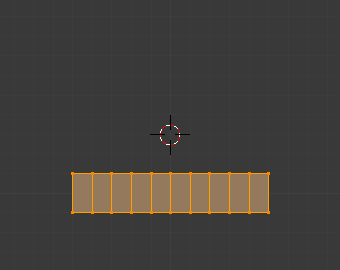
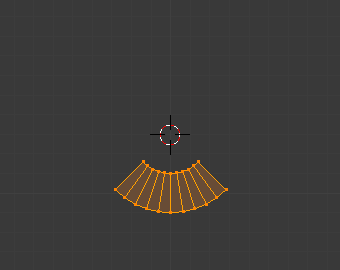
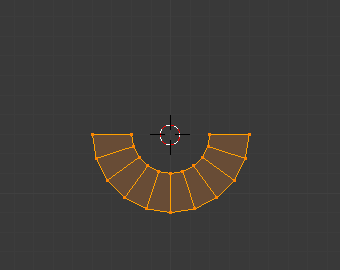
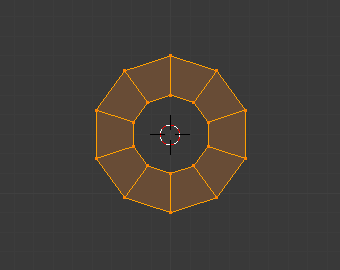
Примечание
В отличие от большинства других инструментов для трансформации, „Warp“ не учитывает ориентацию трансформации или центр трансформации, вместо этого всегда используя плоскости вида и 3D-курсор.
Опции (options)
- Warp Angle
The size of the circle segment along which to bend the selection.
- Угол смещения (offset angle)
Direction angle for the line going from the 3D Cursor to the center of the selection. A value of 0° means straight up, and higher values go clockwise.
- Мин./Макс. (min/max)
Distance from the above centerline to the leftmost/rightmost part of geometry that will be included in the circle segment. The geometry that «sticks out of» these limits will be rotated but not bent.

Warping with an Offset Angle of 45°, a Min and Max of -0.5 and 0.5, and a Warp Angle of 90°.
Пример
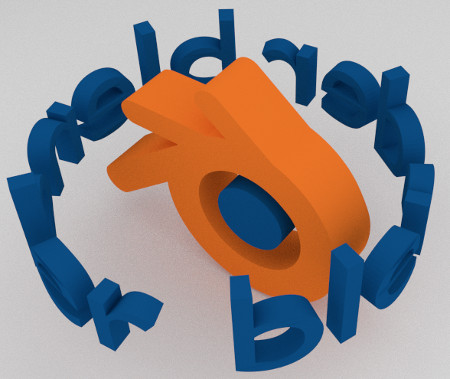
Текст деформированный вокруг логотипа.
This was made by creating the Blender logo and text as separate objects. The text was converted to a mesh and then warped around the logo.