Отображение во вьюпорте (viewport display)
Ссылка
- Режим (mode):
Режимы Объекта, Позы и Редактирования
- Панель:
This panel lets you customize the look of your bones.
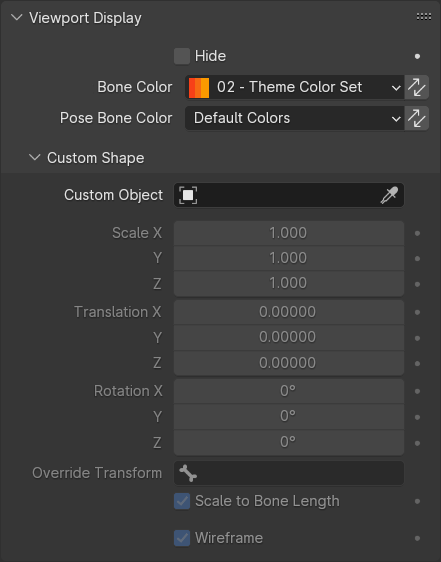
Viewport Display panel in Object/Pose mode.
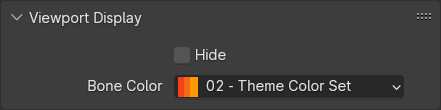
Панель вьюпорта в режиме Редактирования (Viewport Display panel in Edit mode).
Общее
- Скрыть (hide)
Hides the bone in the 3D Viewport. When this is unchecked, the bone’s visibility is determined by the visibility of its bone collections.
- Отображать как (display as)
This controls the way the selected bones appear in the 3D Viewport. This overrides the Display Type of the armature.
- Как для арматуры (armature defined):
Использовать режим отображения, установленный для арматуры.
- Октаэдрический:
Отобразить кости в форме октаэдра.
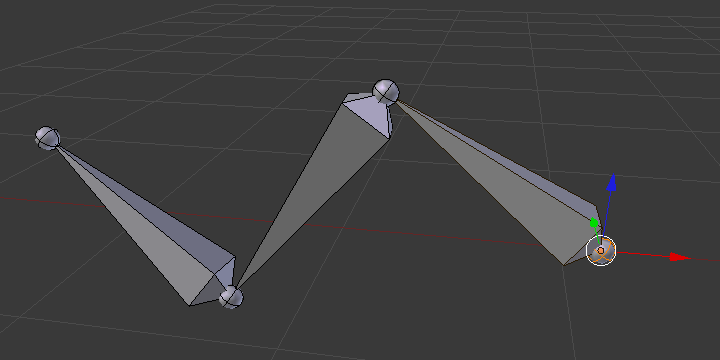
- Трость:
Display bones as simple 2D lines with dots.
- B-Кость (B-bone):
Display bones as boxes, showing subdivision and B-Splines.
- Оболочка (envelope):
Display bones as extruded spheres, showing deformation influence volume.
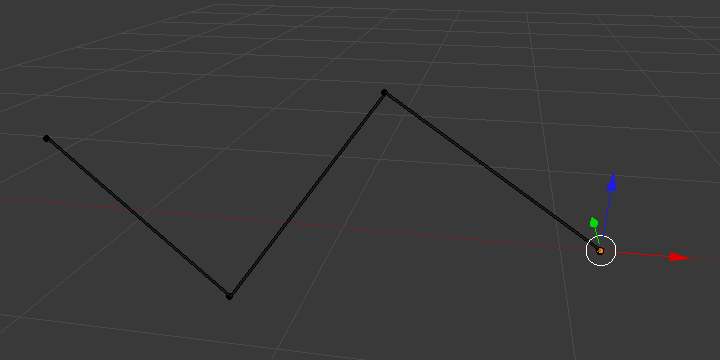
- Проволока (wire):
Display bones as thin wires, showing subdivision and B-Splines.
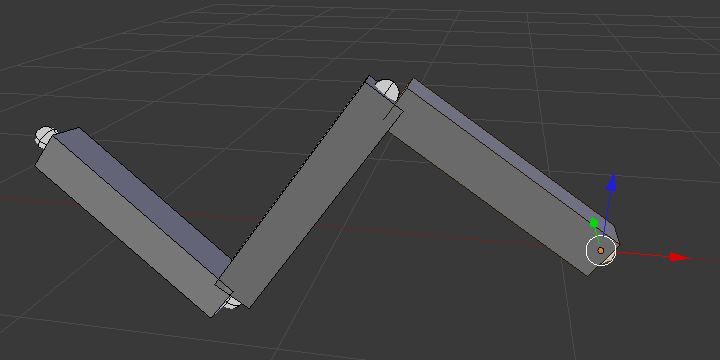
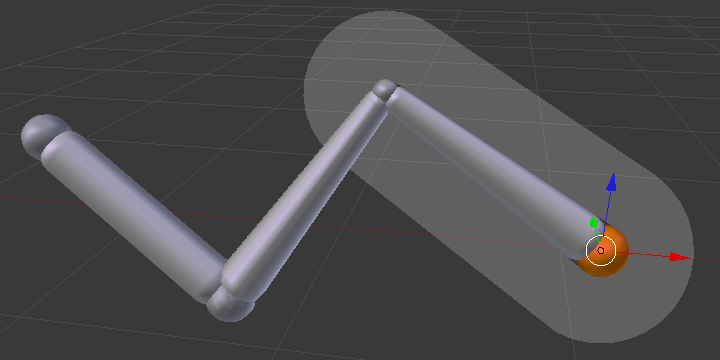
Цвета костей
Bones can be individually colored. You can either choose a color set from the predefined theme list or define a custom one.
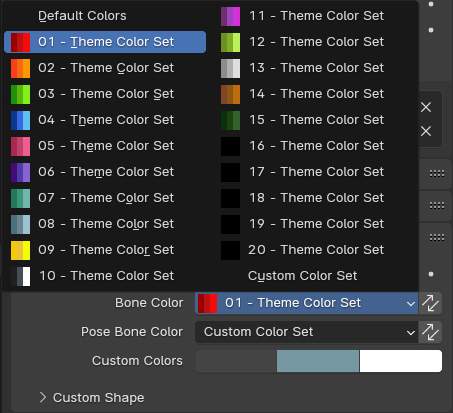
When selecting Custom Color Set, you need to define three colors: Regular (for when the bone is not selected), Selected, and Active.
You can temporarily disable all the color assignments by unchecking Bone Colors in the armature’s Viewport Display panel.
- Цвет кости
The bone’s primary color, affecting both Edit Mode and Pose Mode.
This color is stored on the armature data-block, so that if you have multiple armature objects that share this data-block, they will all use the same color.
- Копировать цвет кости в выбранное
Скопировать цвет активной кости на все выделенные кости.
- Цвет кости позы Режим Позы
Lets you optionally override the above Bone Color in Pose Mode (by setting it to something else than Default Colors).
This color is stored on the Pose Bone, meaning it can be different in every armature object – even ones that reference the same data-block.
- Копировать цвет кости в выбранное
Скопировать цвет активной кости на все выделенные кости.
Custom Shape (Пользовательская форма)
Apart from custom colors, bones can also have custom shapes (in Object Mode and Pose Mode), using another object as a «template.»
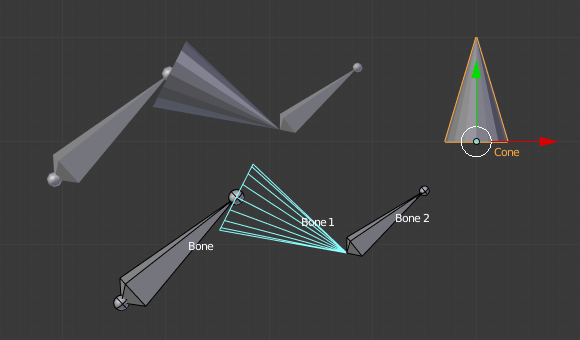
A bone referencing a cone as its Custom Shape.
You can temporarily disable these shapes by unchecking Shapes in the armature’s Viewport Display panel.
- Пользовательский объект (сustom object)
Объект, определяющий форму выбранной кости.
- Смещение X, Y, Z
Additional translation to apply to the custom shape.
- Вращение X, Y, Z (rotation X, Y, Z)
Additional rotation to apply to the custom shape.
- Масштаб X, Y, Z (scale X, Y, Z)
Additional scaling factor to apply to the custom shape.
- Override Transform
A bone that defines the display transform of the custom shape. The shape defined in Custom Object will be placed at the location and orientation of that bone. This is only visual and does not affect the transform values of this bone.
- Влияние гизмо (affect gizmo)
The location and orientation of the Override Transform bone will be used for transform gizmos and for other transform operators in the 3D Viewport.
- Use As Pivot
Transform the bone as if it was a child of the Override Transform bone. This is useful in special cases, where the mesh is deformed away from the bind pose by a separate mechanism, for example Shape Keys.
Примечание
While this affects gizmo interaction, it does not change the transform values of the bone, or how they are interpolated. As such the interpolation may not work as expected.
- Масштабировать по длине кости
Whether the custom shape should be scaled by a factor equal to the bone’s length.
- Каркас (wireframe)
When enabled, the bone is displayed in wireframe mode regardless of the viewport’s shading mode.
- Wire Width
The line thickness of the wireframe for the custom shape.
Примечание
Custom shapes will never be rendered. Like regular bones, they are only visible in the 3D Viewport.
The transforms of the template object are ignored. Moving, rotating, or scaling it will have no effect on its appearance in the armature.
The origin of each instanced shape object is at the root of the bone.
The rotation of each shape object is such that its Y axis lies along the direction of the bone.
For best results when Scale to Bone Length is enabled, make sure the template object is 1 unit in size along its Y axis. This will make it perfectly match the size of each bone.