Opening & Saving
Opening and saving blend-files is usually done using the File Browser.
Порада
Blend-files can also be opened by dragging and dropping blend-files into the Blender window. This method also allows to link/append the file.
Примітка
Незбережені Зміни – Unsaved Changes
Стандартно, при виході з Blender’а або завантаженні нового blend-файлу, якщо ви маєте незбережені зміни, спливне питатиме вас підтвердження, чи відкинути ці зміни, чи їх зберегти.
Ця поведінка може бути вимкнута за допомогою опції «Запит щодо Збереження» – Save Prompt у секції Збереження і Завантаження – Save & Load Уподобань – Preferences.
Відкривання Файлів – Opening Files
Посилання
- Меню:
«Файл > Відкриття» –
- Скорочення:
Ctrl-O
Текстове поле вгорі показує поточний шлях до каталогу з файлом, а текстове під ним містить ім’я обраного файлу.
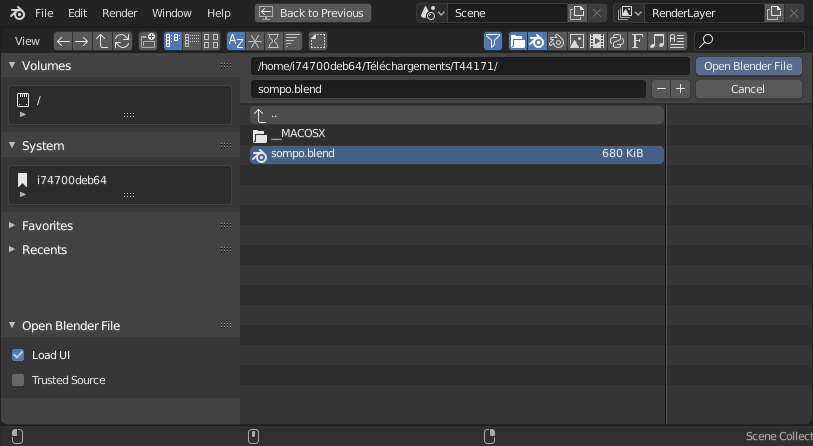
Конфігурація Браузера Файлів – File Browser при відкриванні.
Опції
- Завантажувати Інтерфейс Користувача – Load UI
When enabled, the screen layout saved inside each blend-file is used, replacing the current layout and Workspaces. Otherwise the file screen layout is ignored.
Порада
Якщо ви хочете працювати з blend-файлом, використовуючи власні стандарти, відкрийте свіжий Blender, відкрийте Браузер Файлів – File Browser і вимкніть кнопку «Завантажувати Інтерфейс Користувача» – Load UI, та відкрийте бажаний файл.
- Довірене Джерело – Trusted Source
When enabled, Python scripts and drivers that may be included in the file will be run automatically. Enable this only if you created the file yourself, or you trust that the person who gave it to you did not include any malicious code with it. See Python Security to configure default trust options.
Відкрити Недавнє – Open Recent
Посилання
- Меню:
- Скорочення:
Shift-Ctrl-O
Displays a list of recently opened blend-files. Hovering over items will show a preview, and information about the blend-file. Select any of the file names in the list to open that blend-file. When RMB on a listed item, a context menu will appear; One of the available options is Open File Location, which will open that location in an OS file explorer or Finder window.
Clear Recent Files List
Removes items from the recent files list.
- Вилучити
Choose which type of items to remove.
- All Items:
Removes all recent files.
- Items Not Found:
Removes files from the list that cannot be found i.e. that have been moved or deleted.
Відновлення – Recover
Last Session
Посилання
- Меню:
«Файл > Відновлення > Остання Сесія» –
This will load the quit.blend file Blender automatically saved just before exiting.
This option enables you to recover your last work session if, for example, you closed
Blender by accident.
Авто Збереження – Auto Save
Посилання
- Меню:
The Auto Save option allows you to recover the most recent automatically saved version of your file. This is useful in the event of a crash or if you closed Blender without saving.
Selecting this option opens a file browser pointed to your system’s Temporary Directory – Тимчасова Директорія.
Auto-saved files typically have a name such as <filename>_autosave.blend or a random identifier,
and use the .blend extension.
You can configure the autosave interval and behavior in the Auto Save Preferences.
Попередження
Auto save has some limitations, notably it will not save changes in Sculpt, Texture Paint, and Edit mode.
Важливо
Only one auto-saved file is kept per project. When recovering from an auto save, any changes made after the last save will be lost. Older auto saves are not retained.
Збереження файлів – Saving Files
Посилання
- Меню:
«Файл > Збереження» –
- Скорочення:
Ctrl-S
Saves the current blend-file.
If the blend-file has not been saved before, Blender automatically opens the Save As file browser.
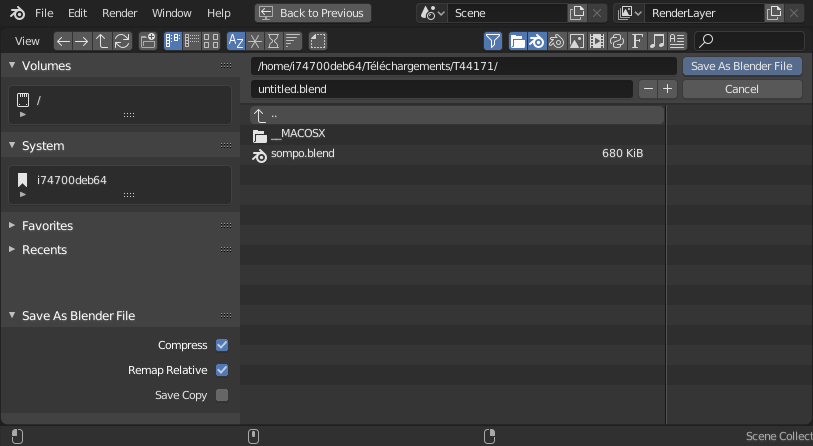
Конфігурація Браузера Файлів – File Browser при збереженні.
When saving a blend-file, Blender may also save modified external images depending on the Save Modified Images preference. See Saving Modified Images.
Save Incremental
Посилання
- Меню:
- Скорочення:
Ctrl-Alt-S
Save the current Blender file with a numerically incremented name that does not overwrite any existing files.
Save As – Збереження Як
Посилання
- Меню:
«Файл > Зберегти Як» –
- Скорочення:
Shift-Ctrl-S
Обирається шлях файлу для збереження по ньому blend-файлу.
Попередження
Якщо файл з таким же ім’ям вже існує, то текстове поле імені забарвиться у червоний колір, попереджуючи, що наявний файл буде перезаписано.
Порада
Використовуйте кнопки з іконками плюс або мінус справа від імені файлу або клавіші NumpadPlus або NumpadMinus відповідно для збільшення/зменшення номера у кінці імені файлу (наприклад, змінення file_01.blend на file_02.blend).
Опції
- Compress – Стиск
Reduces the file size of the resulting blend-file but takes longer to save and load. This option is useful for distributing files online and saving drive space for large projects. But it can cause slowdowns when quitting Blender, or under normal operation when auto-saving backup files. See Compression & Memory Use for more information.
Підказка
The used compression algorithm is Zstandard. It is not unique to Blender so files can be compressed/decompressed with external tools.
Змінено в версії 3.0: Prior to this version, the compression algorithm used was Gzip. This means to open newer blend-files in versions prior to 3.0, blend-files must first be saved without compression in a newer version of Blender or decompressed using an external Zstandard tool.
- Перерозкласти Відносно – Remap Relative
Ця опція перерозкладає Відносні Шляхи – Relative Paths (такі як, до пов’язаних бібліотек та зображень) при збереженні файлу у новій локації.
- Зберегти Копію – Save a Copy
Saves a copy of the actual working state but does not make the saved file active.
Зберегти Копію – Save a Copy
Посилання
- Меню:
«Файл > Зберегти Копію» –
Choose a file path to save the blend-file to, but return to editing the original file upon completion. This can be used to save backups of the current working state without modifying the original file.
For options see Save As – Збереження Як.
Відносні Шляхи – Relative Paths
Many blend-files reference external images or other linked blend-files. A path tells Blender where to look for these files. If the external files are moved, the blend-file that references them will not look right.
When you specify one of these external files, the default option is to make the path relative. Blender stores a partial path evaluated relative to the directory location of the referencing blend-file. This choice helps when you need to reorganize folders or move your files.
With a relative path, you can move the blend-file to a new location provided the externally linked files are moved along with it. For example, you could send someone a folder that contains a blend-file and a subfolder of external images that it references.
Коли відносні шляхи підтримуються, то Браузер Файлів – File Browser забезпечує стяг «Відносний Шлях» – Relative Path, і коли уводите шлях у текстове поле, використовуйте префікс з подвійного слешу (//) для його використання.
Відносні шляхи є стандартом, але це може бути змінене у вкладці File Уподобань – Preferences.
Примітка
You cannot use relative paths into a new untitled blend-file. Save it before linking to external files.
Підказка
If it is necessary to relocate a blend-file relative to its linked resources, use Blender’s File Save As function which has an option to Remap Relative file links.