Вступ
This section describes the various tools for selecting mesh elements.
Дивись також
The Selecting – Вибирання page contains information about selecting in general.
Режими Вибрання – Selection Modes
Посилання
- Режим:
Режим Редагування
- Меню:
- Скорочення:
1, 2, 3 (Shift Multiple Selection Modes, Ctrl Expand/Contract Selection)
In Edit Mode, there are three different selection modes: Vertex, Edge, and Face. To switch to a different mode, click the button in the 3D Viewport’s header or press the shortcut key.
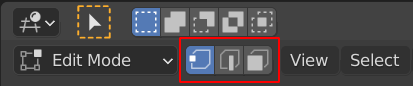
Selection mode buttons
- Vertex 1
In this mode, vertices are shown as points. Unselected vertices are shown in black, selected vertices in orange, and the active vertex in white.
- Edge 2
In this mode, the vertices are not shown. Unselected edges are shown in black, selected edges in yellow, and the active edge in white.
- Face 3
In this mode, selected faces are shaded in orange, and the active face additionally has a white border.
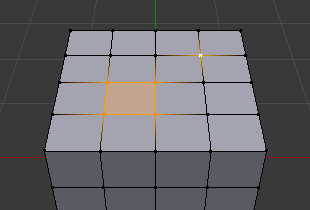
Приклад режиму вибору Вершин – Vertex.¶ |
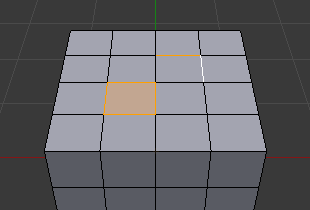
Приклад режиму вибору Ребер – Edge.¶ |
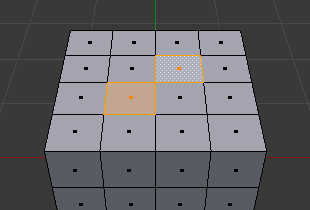
Приклад режиму вибору Граней – Face.¶ |
Switching Selection Mode
When switching modes in an «ascending» way – from Vertices to Edges or from Edges to Faces – the selected elements from the old mode will only stay selected if they form a complete element in the new mode.
For example, if all four edges of a face are selected, switching from Edges to Faces will keep the face selected. However, any edges that do not form a complete face will be deselected.
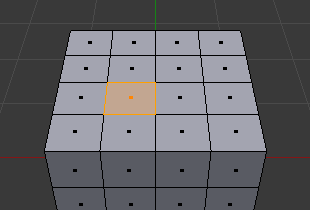
When switching in a «descending» way, on the other hand, all elements stay selected. For example, if you selected a face and switch to Edge mode, all four of its edges will be selected.
Кількома одночасно Режимів Вибрання – Multiple Selection Modes
It’s possible to enable multiple modes at the same time by holding Shift while switching.
Розширення/Звуження Вибрання – Expand/Contract Selection
When holding Ctrl while switching to a «higher» mode, the selection will be expanded, fully including elements of the new mode that were only partially included before.
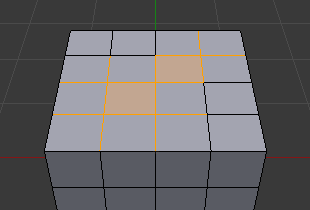
Holding Ctrl while switching to a «lower» mode does the opposite: it contracts the selection, deselecting elements in the new mode that have any unselected neighbors.
X-Ray – Просвічення
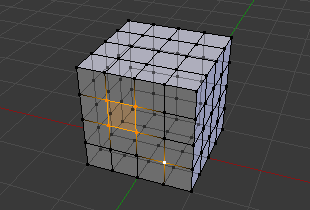
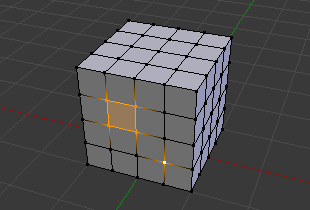
The X-Ray shading mode makes it possible to not just to see occluded geometry, but also select it. As a side effect, it’s no longer possible to select faces by clicking anywhere on their surface; instead, click the selection dot in their center.
Відомі Проблеми – Known Issues
Dense Meshes
When selecting a region with Box/Circle/Lasso Select in a dense mesh with X-Ray disabled, not all vertices in the region may get included due to overlapping. Should this happen, please zoom in or enable X-Ray as a workaround.
N-Бічники у Режимі Вибору Граней – N-Gons in Face Select Mode
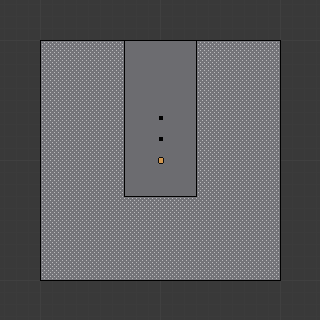
N-gon having its selection dot inside another face.
The face selection dot in the X-Ray and Wireframe shading modes is simply placed in the center of the face, which may not be on the face’s surface in the case of concave n-gons. This can make it harder to find the dot, especially if another face sits in the cavity.