Обмеження Слідування за Треком
Слідувати Треку обмеження робить об’єкт так, що він імітує рух позначки відстеження руху. Це робить об’єкт так, що він з’являється на тій самій позиції в рендері там де з’являється позначка в відео відстеження-руху.
Типово, об’єкт слідує за 2D рухом позначки у відео на літаку (plane) в 3D світ. Однак, також є можливим зробити так щоб об’єкт слідував за реконструйованою 3D позицією позначки. Останній потребує встановлення щонайменше восьми позначок та натискання Рішення Руху Камери/Об’єкта – Solve Camera/Object Motion.
Дивись також
Link Empty to Track – Пов’язання Порожняка з Відстеженням кнопка У Редакторі Відеокліпів створює Порожній та назначає йому це обмеження в один клік.
Опції
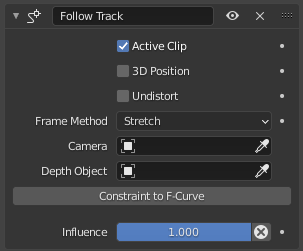
Обмеження Слідування за Треком.
- Активний Кліп
Чи позначка знаходиться в сцені Активного Кліпу. Якщо не увімкнено, то з’являється опція для вибору інших кліпів.
- 3D Позиція
Чи використовувати реконструйовану позицію світу позначки відстеження (натомість від її позиції в плоскому відео).
- Не спотворити
Чи використовувати відео позицію маркеру відстеження після компенсації дисторсії об’єктива (дивіться Налаштування об’єктивів). Не доступне коли увімкнений прапорець 3D Позиції.
- Метод Кадру
Як справлятись з різницею в співвідношенні сторін між відстеженим відеоматеріалами та з зображенням після рендерингу.
- Розтяг:
Об’єкт позиціонується так, ніби відео розтягнуте, щоб точно відповідати розміру зображення після рендерингу.
- Припасування:
Об’єкт позиціонується так, ніби відео було зроблено великим як можливо проте зберігаючи його відношення сторін, та розміщення всередині зрендерованого зображення, вздовж обох осей.
- Обрізка:
Цей об’єкт з позиційовано так, ніби відео було зроблено великим як можливо при цьому зберігаючи його оригінальне співвідношення сторін та розміщуючи його , щоб помістилось, в середину зрендерованого зображення вздовж одної вісі.
Дивись також
Задати як Фон – Set as Background кнопка в Редакторі Відеокліпів встановлює відео як тло для камери.Цьому тлу потім можна змінити розмір встановлюючи той самий Режим Кадру в Фонові Зображення – Background Images панелі властивостей камери.
- Об’єкт
Фізичний об’єкт, що містить позначку відстеження для слідування. Дивіться Панель «Об’єкти» – Objects Panel в Редакторі Відеокліпів. Якщо залишено порожнім, Трек зробить список позначок які використані для реконструкції фізичної камери.
- Відстеження
Мітка відстежування для слідування.
- Camera – Camera
Blender камера у полі зору якої має з’явитися обмежений об’єкт. Якщо залишити порожнім, активна камера сцени буде використана.
- Об’єкт Глибини
Якщо цей об’єкт встановлено, то об’єкт з обмеженням буде проєктуватися на поверхню цього об’єкта. Це може бути використано для створення ефекту гриму обличчя, наприклад. Не доступне коли увімкнений прапорець 3D Позиція.
- Обмеження до F-Кривої
Замінює обмеження набором еквівалентних ключових кадрів.
- Вплив
Наскільки сильно обмеження впливає на свого власника.