Grease Pencil Material Properties
Grease Pencil materials define how strokes and fills are rendered. Each stroke references a single material, and that material contains separate settings for its Stroke and Fill components.
The Material Properties panel provides tools to manage material slots, control visibility and locking, and configure the appearance of stroke and fill shading.
Слоти Матеріалів – Material Slots
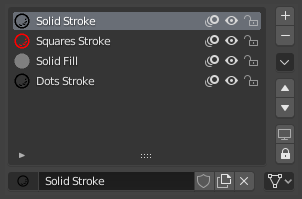
Панель слотів матеріалів Нарисного Олівця.
Material slots assign materials to the Grease Pencil object. Each stroke stores a reference to one of these material slots.
The active material is used for newly created strokes. Existing strokes keep their assigned material unless changed manually.
Next to each material name are controls for common visibility and editing options:
- / (Show/Hide in Ghosts)
Controls whether the material is visible in Onion Skinning previews.
- / (Hide/Show Material)
Toggles the visibility of strokes using this material in the viewport.
- / (Lock/Unlock Material)
Prevents strokes using this material from being edited in Edit Mode.
Спеціальне
These operators provide bulk control over material visibility and locking:
- Відобразити Все
Enable visibility for all materials.
- Сховати Інші – Hide Others
Hide all materials except the active one.
- Блокувати Усе – Lock All
Lock all materials to prevent editing.
- Розблокувати Усе – Unlock All
Unlock all materials for editing.
- Блокувати Невибране – Lock Unselected
Lock materials not used by the currently selected strokes.
- Lock Unused
Lock and hide materials not assigned to any stroke.
- Копіювати Матеріал на Вибране – Copy Material to Selected
Copy the active material to selected Grease Pencil objects.
- Copy All Materials to Selected
Copy all material slots to selected Grease Pencil objects.
- Remove Unused Slots
Remove material slots that are not assigned to any strokes.
Lock & Visibility Controls
- (Isolate Material)
Lock all other materials so only the active material can be edited.
- (Isolate Material)
Hide all other materials so only the active material is visible.
Surface – Поверхня
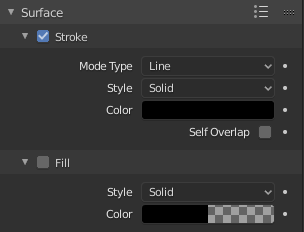
Shader panel with only Stroke component enabled.
The Surface panel defines the visual appearance of strokes and fills. Each material contains two independent components:
Stroke – Controls the outline rendering.
Fill – Controls the interior rendering of closed strokes.
Each component can be enabled or disabled independently.
Штрих – Stroke
The Stroke component defines how the line itself is drawn.
- Line Type
Defines how the stroke geometry is rendered.
- Line – Лінія:
Renders a continuous line connecting stroke points.
- Точки – Dots:
Draws a circular shape at each stroke point. Points are not connected.
- Squares:
Draws a square shape at each stroke point. Points are not connected.
- Style – Стиль
Determines how the stroke is shaded.
- Solid – Суцільне:
Uses a uniform base color.
- Текстура:
Uses an image texture mapped along the stroke.
- Image – Зображення
Image data-block used as the texture source.
- Змішати
Mix factor between the texture and the Base Color.
- Фактор UV – UV Factor
Controls texture scaling along the stroke length.
- Placement Dots Squares
Defines how dots or squares are distributed along strokes.
- Count – Рахунок:
Places a fixed number of dots on each stroke segment.
This mode keeps the number of generated shapes consistent regardless of the stroke length or thickness.
- Count – Рахунок
Number of dots to place on each stroke segment.
- Radius – Радіус:
Places dots based on the stroke radius, adapting the spacing to the stroke thickness.
Larger stroke radii produce wider spacing between dots, while smaller radii place them closer together.
- Інтервал – Spacing
Distance between dots as a percentage of their diameter.
Lower values create overlapping or tightly packed dots, while higher values increase the gap between each generated shape.
- Щільність – Density:
Places dots based on the stroke length.
Longer strokes generate more dots while shorter strokes generate fewer, maintaining a more uniform visual density along the stroke.
- Щільність – Density
Number of dots generated along the stroke length.
Higher values create more densely packed dots.
- Базовий Колір
The primary color of the stroke.
- Притримання – Holdout
Makes the stroke act as a mask, removing color from underlying strokes and fills.
- Вирівняння – Alignment
Controls orientation of Dots and Squares.
- Path – Шлях:
Aligns to the drawing direction and object rotation.
- Об’єкт:
Aligns only to the object’s rotation.
- Fixed – Фіксовано:
Aligns to screen space.
- Обертання
Rotates the Dots or Squares shapes. Limited to -90° to 90°.
- Само Перекриття – Self Overlap
Controls how overlapping parts of the same stroke blend, particularly with semi-transparent materials.
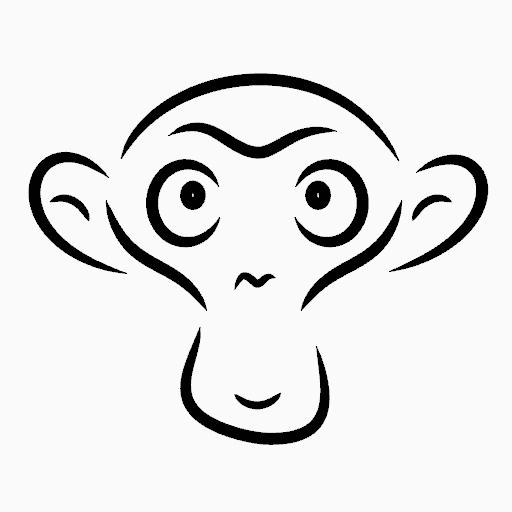
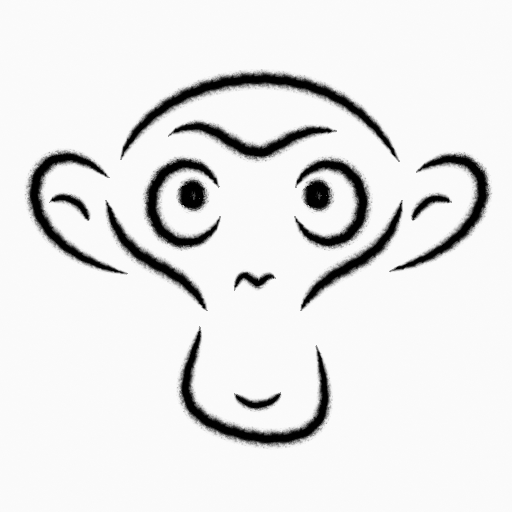


Randomize – Рандомізація
Adds random variation to generated dots or squares to create a less uniform appearance.
- Розмір
Randomly varies the size of generated shapes.
Higher values increase the variation between larger and smaller dots.
- Strength – Сила
Randomly varies the opacity of generated shapes.
This can create a more natural or textured appearance.
- Обертання
Randomly rotates generated shapes around their center.
This is most noticeable when using square shapes.
- Hue – Відтінок
Randomly varies the hue of generated shapes.
- Saturation – Насиченість
Randomly varies the saturation of generated shapes.
- Value – Значення
Randomly varies the brightness of generated shapes.
- Noise Scale
Controls the scale of the random noise pattern.
Lower values create smoother variation across the stroke, while higher values produce more rapidly changing randomization.
Fill – Заповнення
The Fill component controls rendering of closed stroke regions.
- Style – Стиль
Defines how the fill is shaded.
- Solid – Суцільне:
Uses a single base color.
- Градієнт – Gradient:
Blends between two colors.
- Тип Градієнта – Gradient Type
- Linear – Лінеарно:
Blends along one axis.
- Радіально – Radial:
Blends outward from a center point.
- Текстура:
Uses an image texture.
- Image – Зображення
Image data-block used for the fill texture.
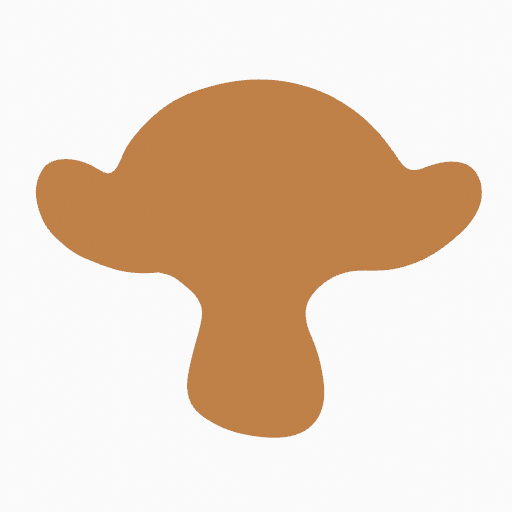
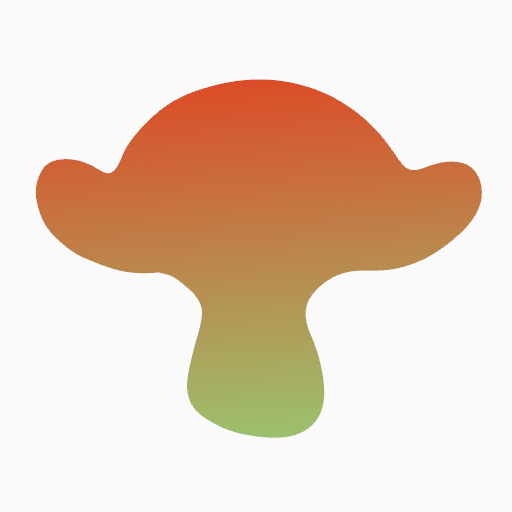
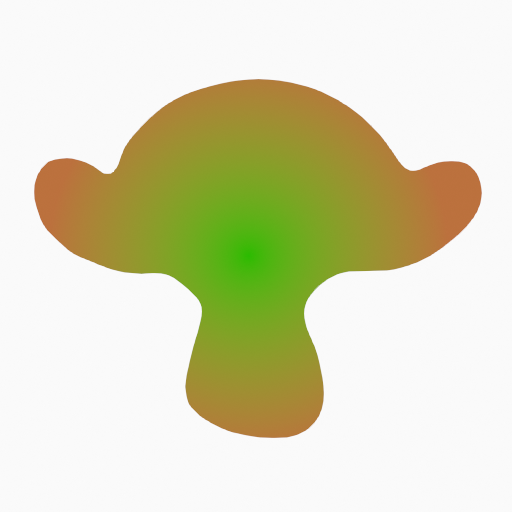
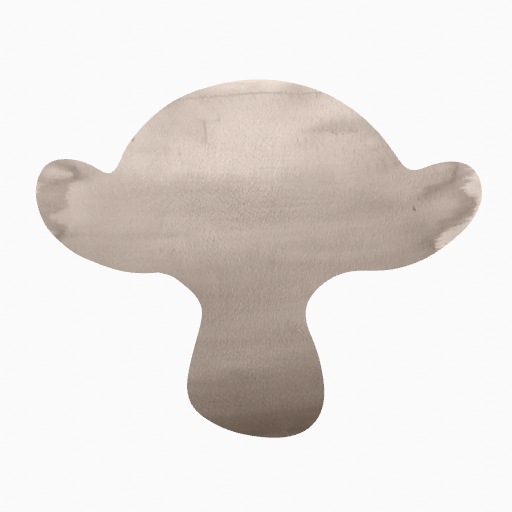
- Базовий Колір
Primary fill color.
- Secondary Color Gradient
Secondary color used for gradients.
- Притримання – Holdout
Makes the fill act as a mask, removing color from strokes underneath.
- Blend Gradient / Texture
Controls mixing between Base Color and the gradient or texture.
- Flip Colors Gradient
Swaps Base and Secondary colors.
- Location X, Y Gradient / Texture
Offsets gradient or texture coordinates.
- Rotation Gradient / Texture
Rotates the gradient or texture mapping.
- Scale X, Y Gradient / Texture
Scales the gradient or texture mapping.
- Clip Image Texture
Prevents texture tiling when enabled.
Settings – Устави
- Індекс Проходу – Pass Index
Custom integer identifier for use in modifiers and compositing. Can be used to target specific materials in Grease Pencil Modifiers.